

Use Cases
Internal - Team members can report internal bugs they discover or submit ideas for new features directly from Slack or Discord. This creates a streamlined workflow for capturing and tracking internal feedback without leaving your communication tools. External - Support teams can capture feedback from customer-facing Slack channels (via emoji reactions or slash commands) or Discord communities. When the related work is completed, send a reply back to the reporter through their original channel.Submitting Reports
Slack:- Emoji reaction — React to any message with a configured emoji to instantly create a ticket. See Emoji Reaction Rules for setup.
/bug-report— Submit a bug report with a description and optional attachments/feature-request— Submit a feature request with details about the desired functionality
/bug-report— Submit a bug report from Discord/feature-request— Submit a feature request from Discord
Viewing Reports
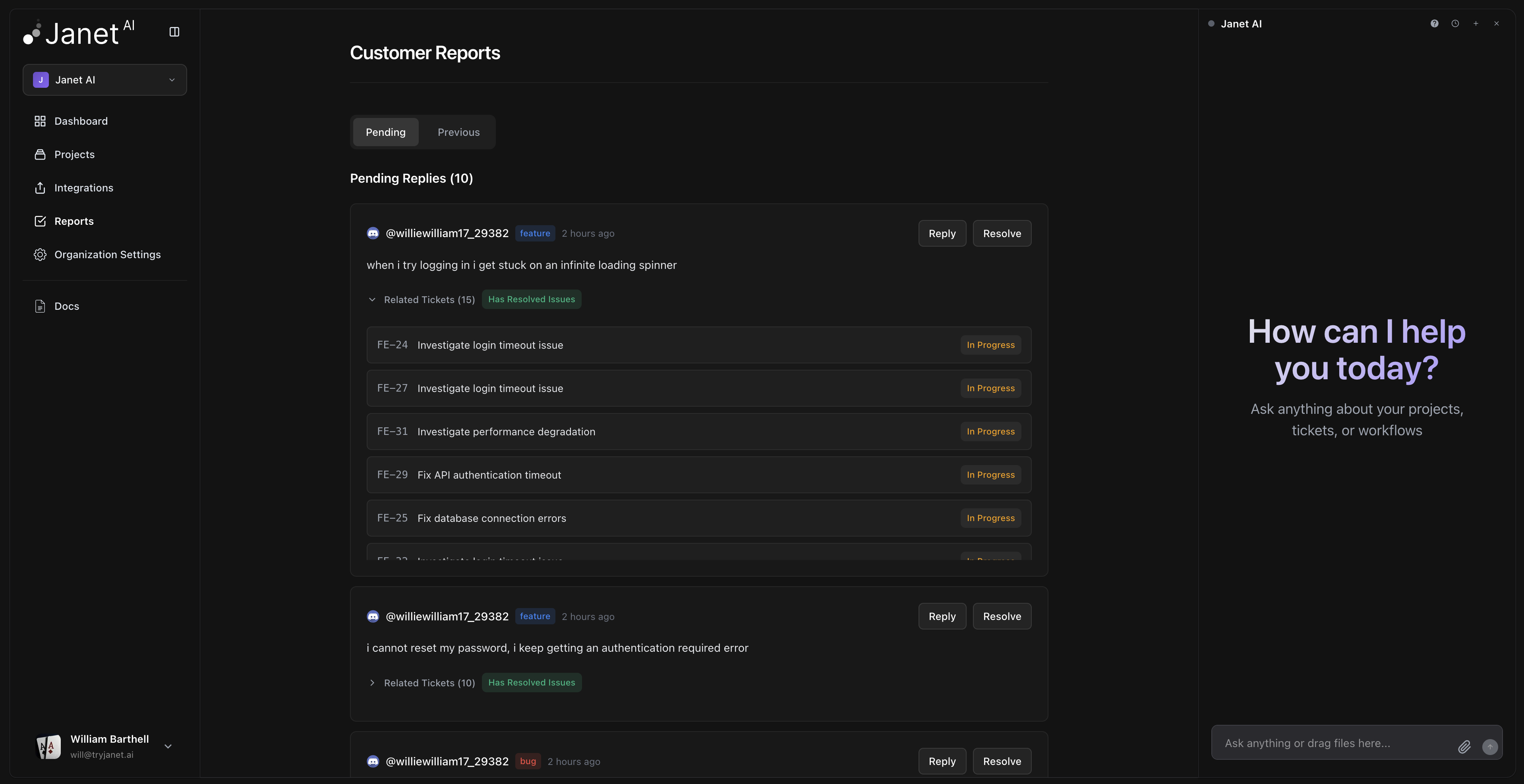
Access the Reports page from your organization dashboard. The page displays two tabs: Pending: Reports awaiting response or resolution Previous: Reports you’ve already responded to or resolved Each report shows:- Reporter name and contact info (email for Slack reports, username for Discord)
- Report type (Bug or Feature, derived from the slash command used or AI classification for emoji reactions)
- Report content and any attachments
- Related tickets and whether any have been resolved
Replying to Reporters
When you click on a pending report, Janet AI opens a modal where you can send a response back to the reporter on their original platform (Slack or Discord). If related tickets are marked as done, Janet AI automatically generates a professional response explaining what was fixed or implemented. Review the suggested reply, then either send it as-is or customize it in the reply field. You can also write completely custom replies by typing directly in the reply field. Once you’re happy with the message, click Send to deliver it to the reporter.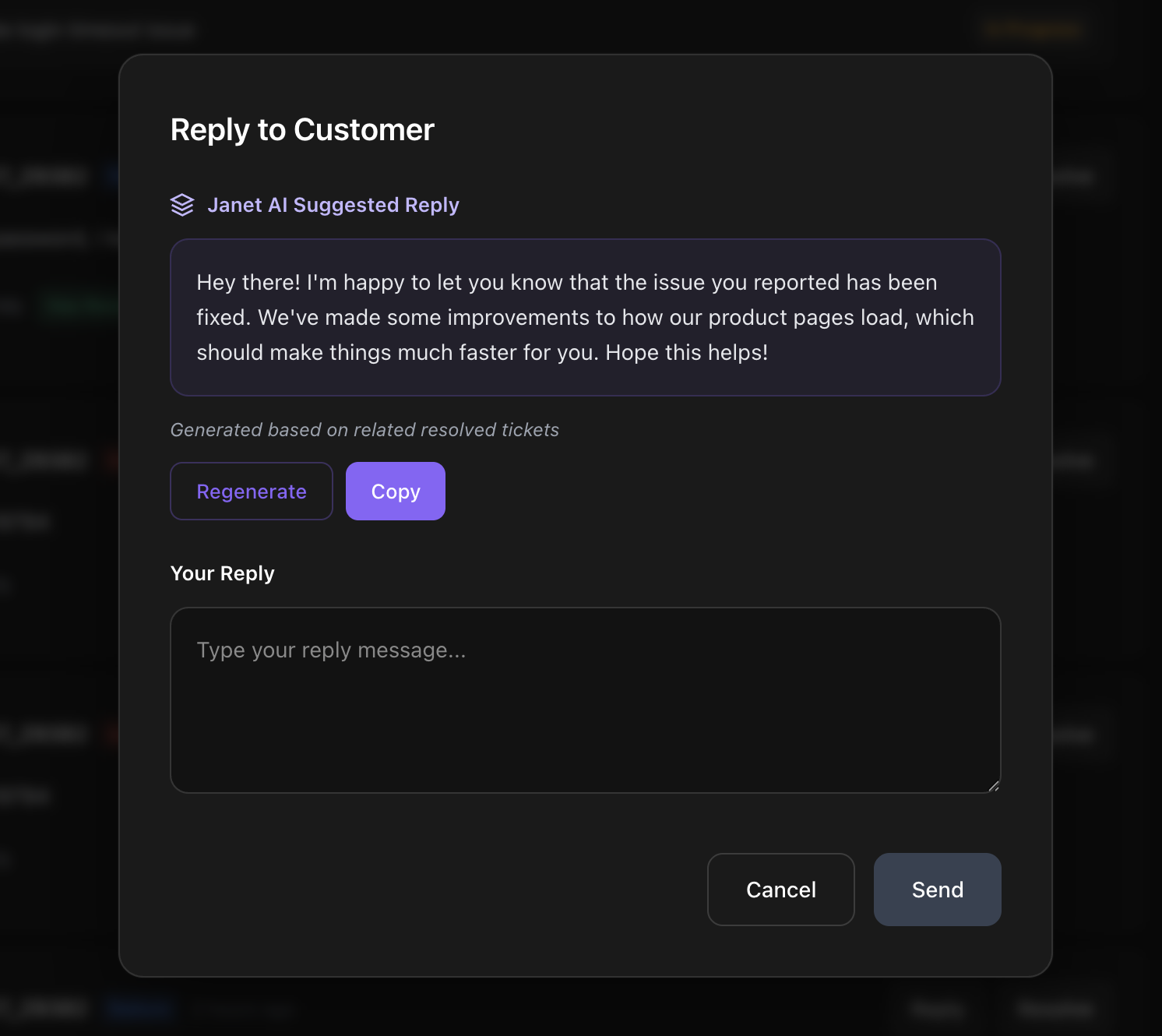
Full Workflow
Report Submitted
Reporter uses
/bug-report or /feature-request in Slack or Discord, or reacts to a Slack message with a configured emojiTicket Auto-Created and Report Auto-Linked
Janet AI classifies the report, determines task type (Bug, Feature, Task, etc.), and creates a new linked ticket or links to an existing one in your configured project
Team Notified
Navigate to the Reports page — the linked report is now marked as “Has Resolved Tickets”
Send Response
Review and send an AI-generated (or custom) reply back to the reporter directly from Janet AI